· MikroTik Tutorial · 2 min read
Mikrotik L2TP over IPSec troubleshooting
Troubleshooting a MikroTik VPN configuration can be frustrating if you do not know where to look. This article is specifically about troubleshooting L2TP over IPSec Remote Access VPNs on RouterOS...
This post was originally published on jcutrer.com (WordPress) and has been migrated to the archive.
Troubleshooting a MikroTik VPN configuration can be frustrating if you do not know where to look. This article is specifically about troubleshooting L2TP over IPSec Remote Access VPNs on RouterOS.
Below are RouterOS configuration areas that relate to L2TP over IPSec. 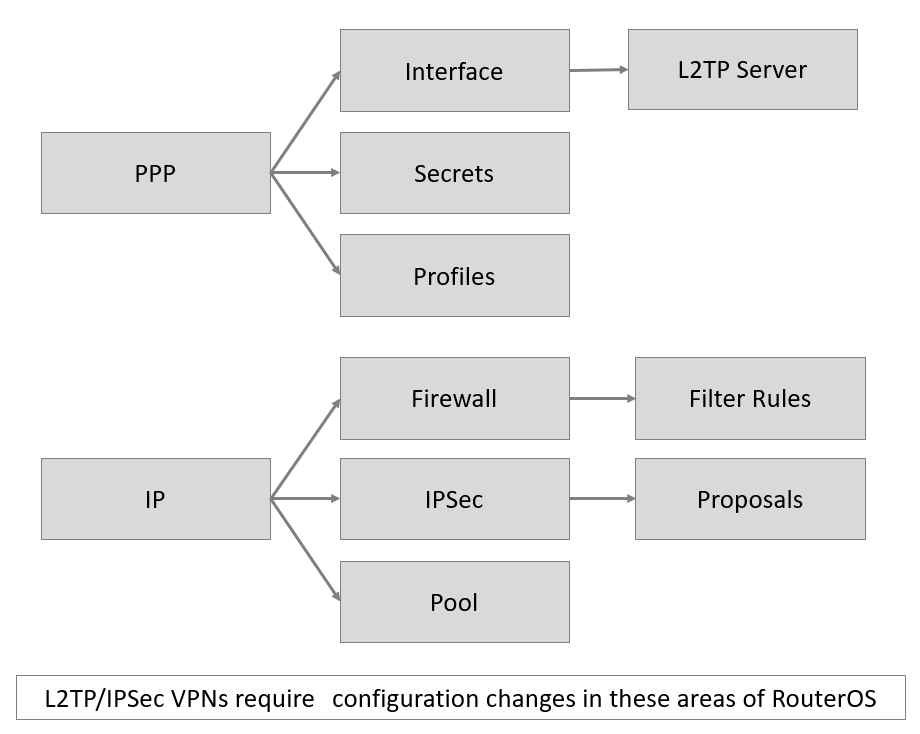 Click to Enlarge
Here are the steps to verify and troubleshoot Remote VPN connections to a MikroTik Router using L2TP over IPSec.
- Ensure that proper firewall ports are open - (/howto/networking/mikrotik/routeros-l2tp-ipsec-vpn-firewall-rules)
- Verify that the L2TP server is enabled
- IPSec secret matches on router and client
- Verify that a compatible IPSec proposal is configured
- Verify that PPP Profile and IP Pool is configured
- Make sure PPP username/password matches
Is your L2TP Server Enabled? Verify IPSec secret (PreShared Key)
- In Winbox, click PPP > Interfaces > L2TP Server
- ** Enable** should be checked
- Use IPSec: yes
- Set IPSec Secret: your-ipsec-psk

Verify IPSec proposal
- In Winbox, click IP > IPsec > Proposals
- Double click default
- Auth Algorithms: ** sha1**
- Encr. Algorithms: ** aes-192-cbc, aes-256-cbc**
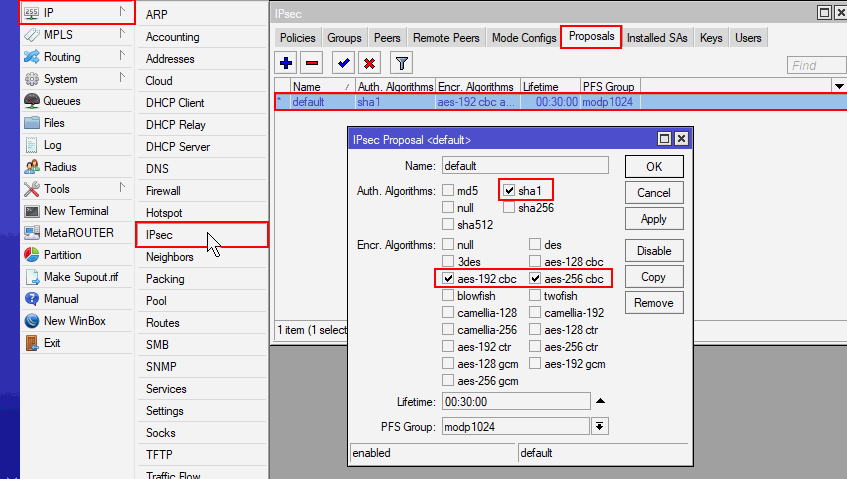
Note: The above proposal is compatible with iOS iPhones / iPads. If you must support clients older operating systems (such as Windows XP), a different proposal may be required.
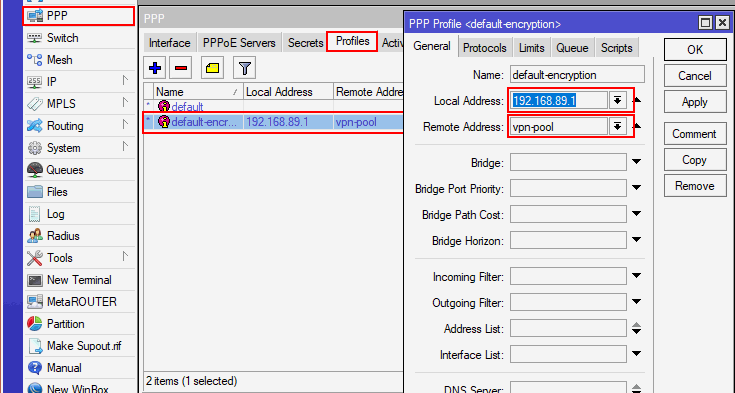
Verify PPP Profile & IP Pool
- In Winbox, click
PPP > Profiles - Default a Local Address
- Specify VPN IP Pool
- If a IP pool needs to be create, goto .IP > Pool
Verify PPP credentials
VPN username accounts are defined in RouterOS as PPP Secrets. PPP > Secrets
Enable IPSec logging
/system logging add prefix="L2TPDBG===>" topics=l2tpEnable L2TP logging
/system logging add prefix="IPSECDBG===>" topics=ipsecIPSec Secret (PSK) Mismatch
If you have IPSec logging enable and a client is connecting with an incorrect preshared key you will see the following error in your router’s log file.
14:16:37 ipsec,error IPSECDBG===>: 10.X.X.XX parsing packet failed, possible cause: wrong passwordPPP Username/password is incorrect
If you have L2TP logging enable and a client is connecting with an incorrect username or password you will see the following errors in your router’s log file.
14:22:19 l2tp,ppp,debug,packet L2TPDBG===>:
14:22:19 l2tp,ppp,debug,packet L2TPDBG===>:  : sent CHAP Failure id=0x1
14:22:19 l2tp,ppp,debug,packet L2TPDBG===>:     E=691 R=0 C=A9A0C9CFDEB630268F0DEEEEF55EF149 V=3 M=bad username or password
14:22:19 l2tp,ppp,error L2TPDBG===>: : user vpnuser1 authentication failed
I hope this short guide has helped you troubleshoot & debug Mikrotik L2TP/IPSec VPN configurations. If you have questions, leave a comment below & checkout my other (/howto/networking/mikrotik/). Keywords: remote access vpn, l2tp, ipsec, proposal, logging, debugging, ios vpn, windows vpn, encryption
Comments are disabled (Giscus not yet configured).