· MikroTik Tutorial · 3 min read
MikroTik Script: Authentication Logging w/ Email Reports
In this article I will show you how to configure a separate log file on a MikroTik router that will only contain authentication log entries. The log file will contain log entries for winbox, webfig...
This post was originally published on jcutrer.com (WordPress) and has been migrated to the archive.
In this article I will show you how to configure a separate log file on a MikroTik router that will only contain authentication log entries. The log file will contain log entries for winbox, webfig, ssh, telnet, ftp as well as VPN user authentications. Additionally, we will configure a scheduled script to email this log file to ourselves daily.
If you haven’t already, now is a good time to stop and configure (/howto/networking/mikrotik/mikrotik-tutorial-how-to-configure-persistent-logging) on your MikroTik router.
Configure Authentication Logging to a dedicated log file
/system logging action add disk-file-count=1 disk-file-name=auth.log disk-lines-per-file=5000 name=
auth target=disk

/system logging add action=auth topics=account
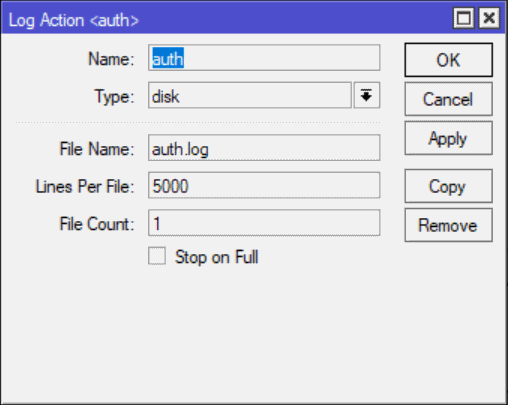
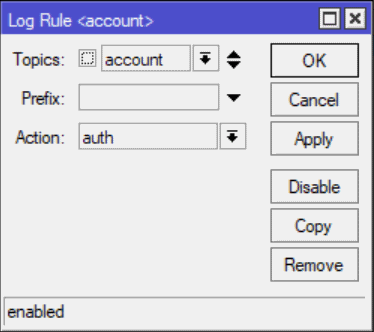
What we have done here is defined a new logging action named auth that logs to a file on disk named auth.log. In my example the log file will retain the last 5000 entries. The second line tells the MikroTik router to write any new logs with the topic account to the auth.log file.
If you are using winbox here is what the configuration screens look like.
!(https://cdn.jcutrer.com/wp-content/uploads/2018/04/mikrotik-auth-log-action-300x239.png)
!(https://cdn.jcutrer.com/wp-content/uploads/2018/04/mikrotik-auth-log-rule-300x266.png)
Important
The above configuration will only log successful authentication events such as login and logout. If you would also like to log authentication failures you will also need to add another logging definition for critical. Since there are other non-authentication critical log events they may end up in your auth.log file.
/system logging add action=auth topics=criticalBefore we get to the email configuration and script I want to point out that you can now easily filter and view authentication logs from within winbox. Just open the log viewer and choose auth from the dropdown.
!(/wp-content/uploads/2018/04/mikrotik-log-viewer-winbox.png)
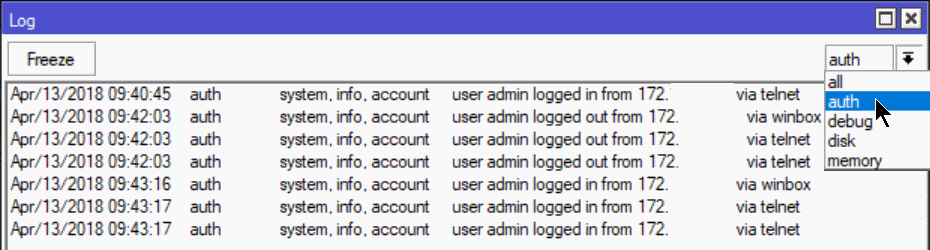
You can also print the auth log from the cli using the following command.
/log print where buffer="auth"Email Configuration
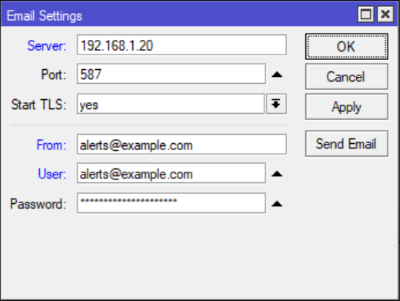
Before we can send email from the MikroTik router we must configure a valid email server in Tools | Email. Here is an example, of course you will have to workout your own authentication credentials.
/tool e-mail
set address=192.168.1.20 from=alerts@example.com password=\
    super-secret-email-password port=587 start-tls=yes user=alerts@example.com
The Script
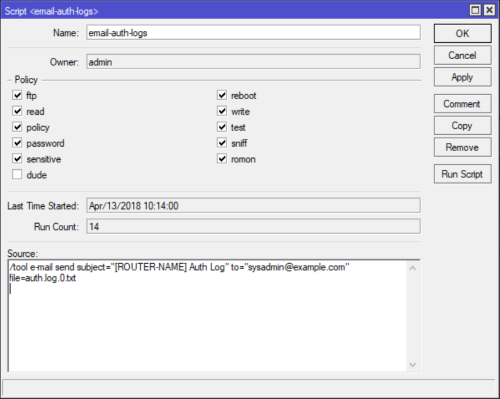
I have chosen to create a dedicated script and separate schedule that executes the script. I could also just paste the script right into the schedule itself. I like the separated approach because you can run the script on demand from winbox using the Run Script button.
/system script
add name=email-auth-logs owner=admin policy=\
    ftp,reboot,read,write,policy,test,password,sniff,sensitive,romon source="/to\
    ol e-mail send subject=\" Auth Log\" to=\"sysadmin@example.com\
    \" file=auth.log.0.txt"
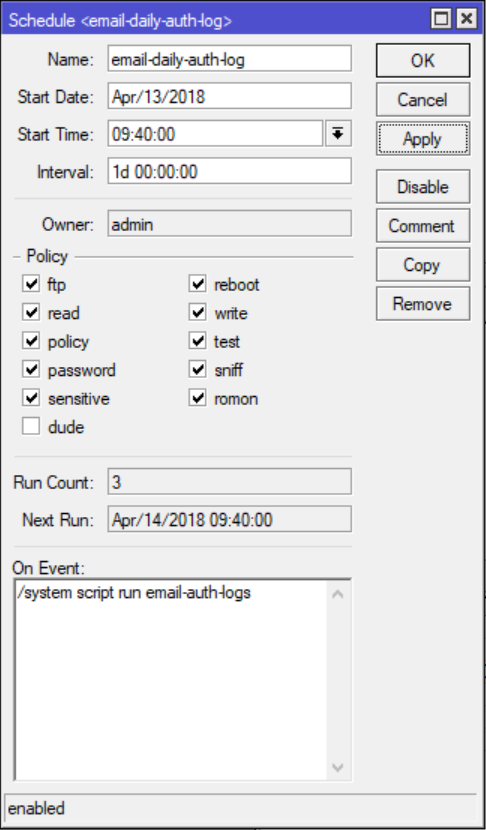
The Schedule
/system scheduler
add interval=1d name=email-daily-auth-log on-event=\
    "/system script run email-auth-logs " policy=read,write,sensitive \
    start-date=apr/13/2018 start-time=09:40:00
The schedule that I have configured emails the auth.log file as attachment everyday at 9:40AM. Here are the equivalent winbox screenshots.
!(/wp-content/uploads/2018/04/winbox-email-settings-300x226.png)
!(/wp-content/uploads/2018/04/mikrotik-email-auth-log-script-300x239.png)
!(/wp-content/uploads/2018/04/mikrotik-email-auth-log-schedule-176x300.png)
Example Authentication Log Entries
# login via telnet
09:40:45 system,info,account user admin logged in from 192.168.x.xxx via telnet

# login via winbox
09:42:03 system,info,account user admin logged in from 192.168.x.xxx via winbox

# login via webfig (http)
11:08:36 system,info,account user admin logged in from 192.168.x.xxx via web

# login via L2TP/IPSec VPN
11:10:27 l2tp,ppp,info,account vpnuser logged in, 192.168.xx.xx
11:10:34 l2tp,ppp,info,account vpnuser logged out, 7 1939 7759 21 20

# login via ssh
11:11:38 system,info,account user admin logged in from 192.168.x.xxx via ssh

# login via ftp
11:12:45 system,info,account user admin logged in from 192.168.x.xxx via ftp
11:12:53 system,info,account user admin logged out from 192.168.x.xxx via ftp
I hope you find this technique useful in monitoring and managing your MikroTik devices. Feel free to leave a comment below or checkout my other (https://jcutrer.com/category/howto/networking/mikrotik).
Comments are disabled (Giscus not yet configured).