· MikroTik Tutorial · 2 min read
Mikrotik Tutorial: How to configure persistent logging
The default logging configuration on a MikroTik router is to only keep logs in memory. When the router reboots the logging history is erased. In this article I will show you the simple steps to...
This post was originally published on jcutrer.com (WordPress) and has been migrated to the archive.
The default logging configuration on a MikroTik router is to only keep logs in memory. When the router reboots the logging history is erased. In this article I will show you the simple steps to configure persistent logging to disk.
Steps to configure persistent logging
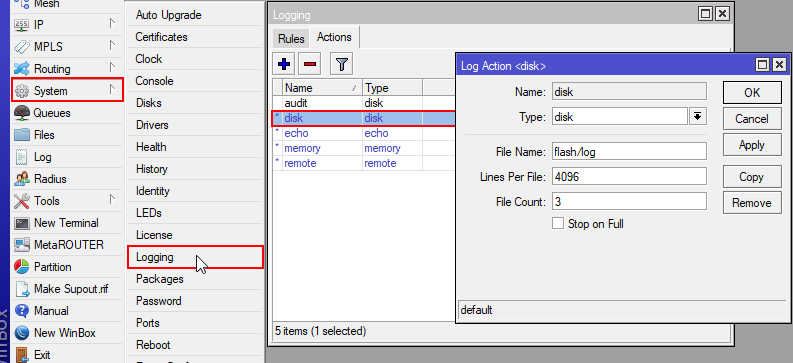
- In Winbox, choose System | Logging
- On the Rules tab, double-click each default rule
- Click Copy and change the Action dropdown to disk
- Press OK to save the new rule
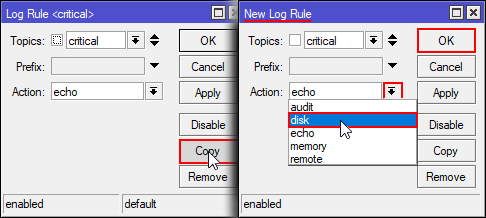
- Repeat these steps for each of the 4 default logging rules (critical, error, info, and warning).
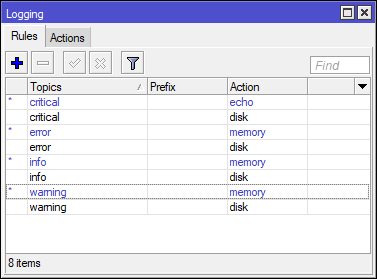
Here is what my logging rules look like after creating the 4 new rules.
Log File Retention Settings
Under the Actions tab, you can define the filename, file size and number of rotated log files to keep. For disk performance reasons, I recommend a max of 4096 lines per log file. You can also prefix the filename with the path to an external usb thumb drive to keep your logs separate from the built-in flash memory.
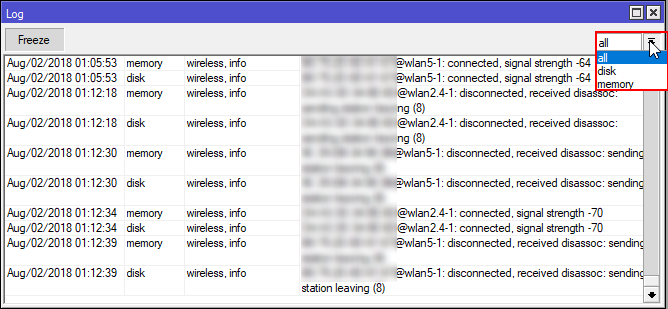
One side affect to configuring persistent logging is that the WinBox Log viewer will show duplicate entries. To remove the duplicates, choose either memory or disk from the top, right-hand dropdown. It will revert to all each time you reopen the Log window.
Now when you router reboots your log file(s) will be preserved. Thanks for following along and I hope this tutorial helped you out. (#comments) and checkout my other MikroTik Tutorials
Comments are disabled (Giscus not yet configured).