· MikroTik Tutorial · 2 min read
MikroTik Tutorial: How to recover RouterOS passwords from a backup file
These steps will help you recover a forgotten password from an unencrypted RouterOS backup file. To complete these step we will use a python tool called RouterOS-Backup-Tools written by Lorenzo...
This post was originally published on jcutrer.com (WordPress) and has been migrated to the archive.
These steps will help you recover a forgotten password from an unencrypted RouterOS backup file. To complete these step we will use a python tool called RouterOS-Backup-Tools written by Lorenzo Santina (BigNerd95). I have included steps specific to Windows and Linux which vary slightly.
Jump to Steps for… (#windows) | (#linux)
Windows MikroTik Password Recovery
Install Python 3 and git from Windows
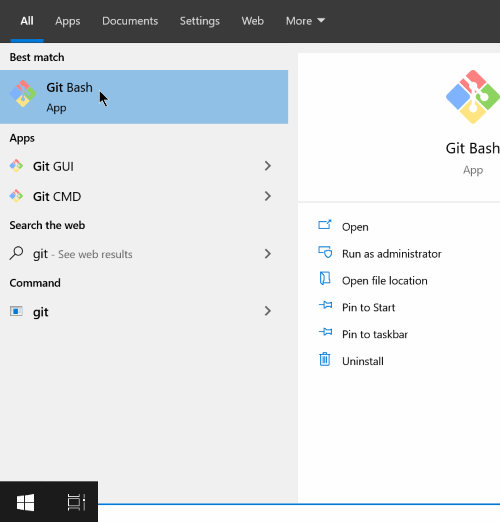
Open a git bash console and create a new directory
mkdir rostest
cd rostest
Clone the RouterOS-Backup-Tools repo
git clone https://github.com/BigNerd95/RouterOS-Backup-Tools.gitCreate a virtualenv and install the dependency library
virtualenv ./venv
./venv/Scripts/activate.bat
pip install pycryptodome
Now we are ready to extract our .backup file and decode the passwords. Before beginning this step, copy your backup file into the rostest folder.
python RouterOS-Backup-Tools/ROSbackup.py unpack myrouter.backup -d myrouter

python RouterOS-Backup-Tools/extract_user.py myrouter/user.dat
************** Output ***************
User: admin
Pass:
User: admin
Pass:
User: admin
Pass: mysecretpassword
*************************************(#conclusion)
Linux MikroTik Password Recovery
Make sure you have Python 3 installed.
python3 -VCreate a new folder and clone the RouterOS-Backup-Tools repo
mkdir rostest
cd rostest
git clone https://github.com/BigNerd95/RouterOS-Backup-Tools.git
Create a virtualenv and install the dependency library
virtualenv ./venv
source ./venv/Scripts/activate
pip install pycryptodome
Now we are ready to extract our .backup file and decode the passwords. Before beginning this step, copy your backup file into the rostest folder.
python RouterOS-Backup-Tools/ROSbackup.py unpack myrouter.backup -d myrouter

python RouterOS-Backup-Tools/extract_user.py myrouter/user.dat
************** Output ***************
User: admin
Pass:
User: admin
Pass:
User: admin
Pass: mysecretpassword
*************************************Conclusion
That’s It! You have successfully recovered your forgotten password from a routeros backup file. If you are faced with needing to get a password from an encrypted backup you will need to unencrypted the backup using a bruteforce method. The software package RouterOS-Backup-Tools includes tools for bruteforcing and unencrypting RouterOS backup files but that is beyond the scope of this article.
Let me know what you think, leave a comment below. Did these steps work for you?
Comments are disabled (Giscus not yet configured).