· Linux · 2 min read
How to install Ubiquiti Unifi controller ver 4.6.6 on ubuntu 15.04
With the recent announcement of Ubiquiti's Unifi AC Wireless Access Points they also released a new version of the Unifi controller software. Unifi Access Points are provisioned and controlled by a...
This post was originally published on jcutrer.com (WordPress) and has been migrated to the archive.
With the recent announcement of Ubiquiti’s Unifi AC Wireless Access Points they also released a new version of the Unifi controller software. Unifi Access Points are provisioned and controlled by a central management software called Unifi. Unifi is available for Windows, Mac, and Linux.
In this tutorial, I will show you how to install Unifi on a ubuntu 15.04 linux server
Scroll down for detailed steps or watch the video tutorial.
https://www.youtube.com/watch?v=fN52kkh32Ds
If you don’t have a ubuntu machine but want to follow along, download a ready-to-go Ubuntu 15.04 Virtual Machine image from (http://osboxes.net/ubuntu/). This tutorial should also work exactly the same on Ubuntu 14.04. Before we get started, make sure your server has all the latest software updates installed.
sudo apt-get update
sudo apt-get upgrade
# Followed by a reboot
sudo reboot
Step 1: Add the Unifi repo so that you can install unifi with apt-get
Create /etc/apt/sources.list.d/100-ubnt.list and add the following
## Debian/Ubuntu
# stable => unifi4
# deb http://www.ubnt.com/downloads/unifi/debian unifi4 ubiquiti
deb http://www.ubnt.com/downloads/unifi/debian stable ubiquiti
Step 2: Import the GPG keys for the new repo
# for Ubiquiti
sudo apt-key adv --keyserver keyserver.ubuntu.com --recv C0A52C50
Step 3: Update APT and Install Unifi
sudo apt-get update
sudo apt-get install unifi
Step 4: Confirm that unifi is installed and running
sudo service unifi statusYou will see output similar to the following
— unifi.service - unifi
Loaded: loaded (/lib/systemd/system/unifi.service; enabled; vendor preset: enabled)
Active: active (running) since Tue 2015-09-08 19:45:11 BST; 17min ago
Process: 8925 ExecStop=/usr/lib/unifi/bin/unifi.init stop (code=exited, status=0/SUCCESS)
Process: 8958 ExecStart=/usr/lib/unifi/bin/unifi.init start (code=exited, status=0/SUCCESS)
Main PID: 8980 (jsvc)
CGroup: /system.slice/unifi.service
├─8980 unifi -home /usr/lib/jvm/java-6-openjdk-amd64 -cp /usr/share/j...
├─8982 unifi -home /usr/lib/jvm/java-6-openjdk-amd64 -cp /usr/share/j...
├─8983 unifi -home /usr/lib/jvm/java-6-openjdk-amd64 -cp /usr/share/j...
├─8995 /usr/lib/jvm/java-6-openjdk-amd64/jre/bin/java -Xmx1024M -Dapp...
└─9014 bin/mongod --dbpath /usr/lib/unifi/data/db --port 27117 --loga...
Sep 08 19:45:10 osboxes systemd[1]: Starting unifi...
Sep 08 19:45:10 osboxes unifi.init[8958]: * Starting Ubiquiti UniFi Controller...fi
Sep 08 19:45:11 osboxes unifi.init[8958]: ...done.
Sep 08 19:45:11 osboxes systemd[1]: Started unifi.
Hint: Some lines were ellipsized, use -l to show in full.Step 5: Open your browser to https://:8443/
!(http://jcutrer.com/wp-content/uploads/2015/09/unifi-4.6.6-setup-wizard-300x228.jpg)

Unifi Controller for Linux is now installed
Complete the Unifi Setup Wizard and login to the controller.
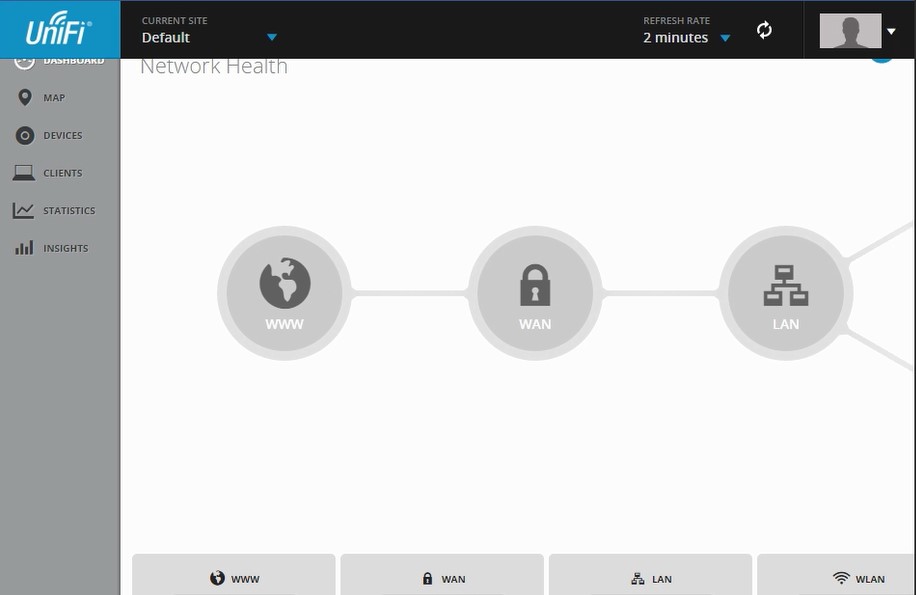
!(http://jcutrer.com/wp-content/uploads/2015/09/unifi-4.6.6-dashboard-300x195.jpg)
References
- (http://osboxes.net/ubuntu/)
- (https://community.ubnt.com/t5/UniFi-Updates-Blog/UniFi-4-6-6-is-released/ba-p/1288816)
- (https://www.ubnt.com/enterprise/#unifi:hardware)Comments are disabled (Giscus not yet configured).