· Windows · 2 min read
The easiest way to use Bash shell on Windows
I want to use the bash shell on windows in place of the command prompt. I've tried the Linux subsystem for Windows and it's not what I'm looking for and Cygwin just doesn't feel right. My search led...
This post was originally published on jcutrer.com (WordPress) and has been migrated to the archive.
I want to use the bash shell on windows in place of the command prompt. I’ve tried the Linux subsystem for Windows and it’s not what I’m looking for and Cygwin just doesn’t feel right. My search led me to the Git Bash shell bundled with Git for Windows.
This article is about how to install git bash and customize it.
To clarify, the bash shell included in Git for Windows is actually mingw64. Mingw64 has a windows installer (https://sourceforge.net/projects/mingw-w64/) but I really like the “Git Bash Here” shell extension you get when you install Git for Windows.
!(/wp-content/uploads/2018/01/git-bash-here-right-click.png)
How to Install Git Bash (Method 1 via choco)
- (/windows/install-chocolatey-choco-windows10)
- Open a privileged Command Prompt window
- Install Git for Windows using choco
choco install git -y
or just Install Git for Windows (Method 2, traditional install)
- Navigate to (http://gitforwindows.org/)
- Download and Run the Installer
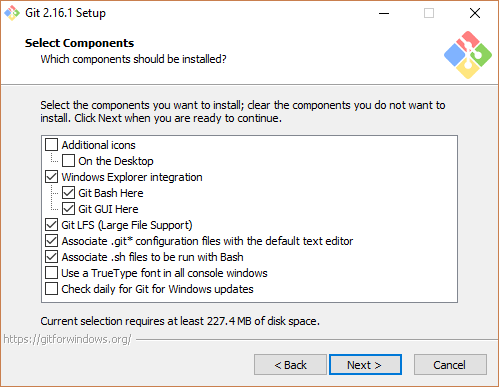
- Make sure **[*] Git Bash Here** is checked
!(/wp-content/uploads/2018/01/git-for-windows-install-select-components-300x233.png)
Launching Git Bash
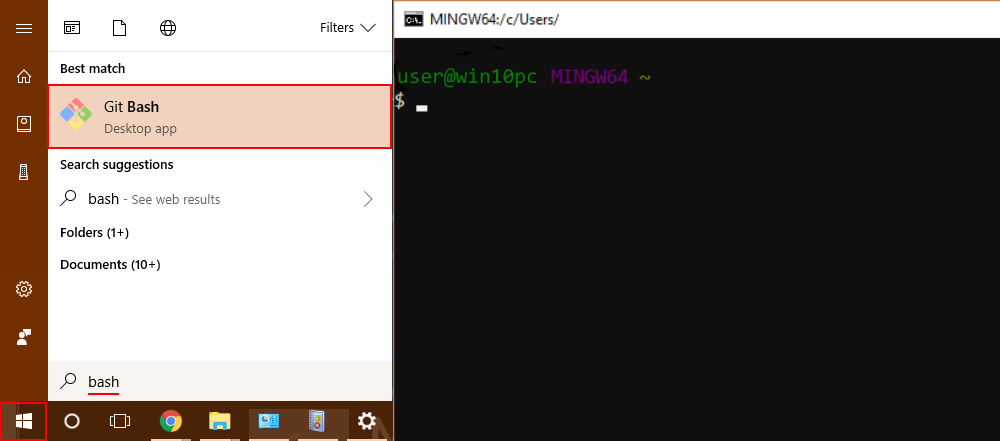
From the Start Menu
- Click **Start** and type "bash"
- Click **Git Bash**
!(/wp-content/uploads/2018/01/launch_git_bash_start_menu.png)
From Windows Explorer
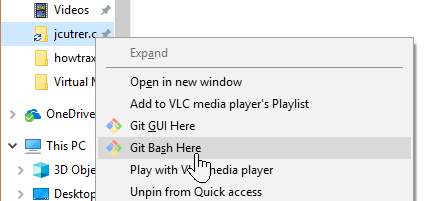
- Open Windows Explorer
- Navigate to your target folder
- Right-click on the folder and choose "Git Bash Here"
!(/wp-content/uploads/2018/01/git-bash-here-right-click.png)
From an existing Command Prompt window
For this method to work you must add C:\Program Files\Git\usr\bin to your PATH From an command prompt just type bash
Customizing the bash prompt
The default prompt for Git Bash was a bit odd but you can change it just like on linux.
export PS1=“pwd #”
Comments are disabled (Giscus not yet configured).