· Windows · 1 min read
How to uninstall Groove Music app in Windows 10 without PowerShell
Just like the built-in Xbox app on Windows 10, Microsoft provides no easy way to uninstall the Groove music app. There are tons of articles that use PowerShell to remove these built-in apps, the...
This post was originally published on jcutrer.com (WordPress) and has been migrated to the archive.
Just like the built-in (/windows/uninstall-xbox-windows-10-ccleaner) on Windows 10, Microsoft provides no easy way to uninstall the Groove music app. There are tons of articles that use PowerShell to remove these built-in apps, the command looks like this.
Get-AppxPackage *zunemusic* | Remove-AppxPackage
In this article, I will show you an easier way using a tool you may already have installed. Ccleaner, a popular free software utility for Windows has useful tools built in including Uninstall. Ccleaner is free, if you don’t already have it you can download and install it from (https://www.piriform.com/ccleaner).
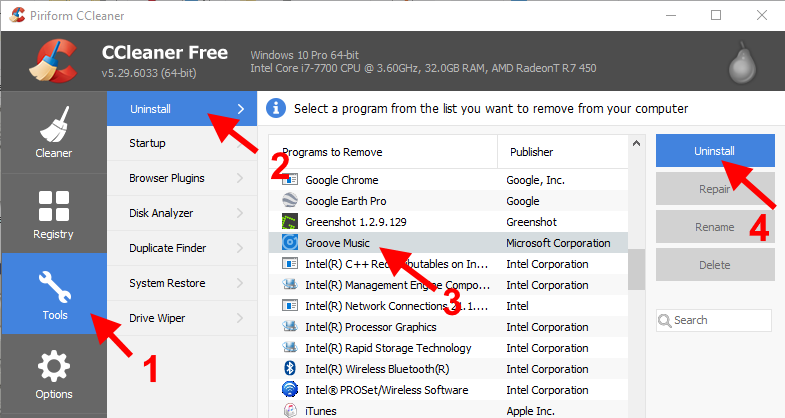
Here are the steps to uninstall the built-in Groove Music app in Windows 10.
- Launch **Ccleaner** and click on the **Tools** menu.
- Find and highlight the Groove Music app in the list of installed applications
- Click “**Uninstall**” and confirm.!(http://jcutrer.com/wp-content/uploads/2017/07/uninstall-groove-music-with-ccleaner.png)
That’s it! No PowerShell, no terminal windows, just point and click. :) You can use the same technique to uninstall other Windows 10 built-in apps including Xbox, MSN Money, MSN Weather, Bing Maps. Do you have another technique you use to uninstall Windows 10 apps? (#disqus_thread) or read more (/windows)
References
- (https://www.piriform.com/news/blog/2016/07/29/let-ccleaner-remove-the-windows-10-default-apps-you-can-t-get-rid-of?utm_medium=social&utm_source=twitter&utm_campaign=blog&utm_content=09012017)
- (https://www.piriform.com/ccleaner)Comments are disabled (Giscus not yet configured).